FiveMinChat Documentation
What is FiveMinChat?
FiveMinChat is an AI-powered chatbot that lives on your website, answers visitor questions automatically, and collects contact information - all trained on your own content.
Upload your documents or point it at your website - it learns from your actual content.
One line of code on your website. Works with WordPress, Shopify, Wix, or any site.
When a visitor shares their name, phone, or email - you get an instant email notification.
See how many messages your bot has handled and manage everything from one place.
Creating Your Account
Signing up takes less than 2 minutes. You'll set up your account and configure your AI bot in one go.
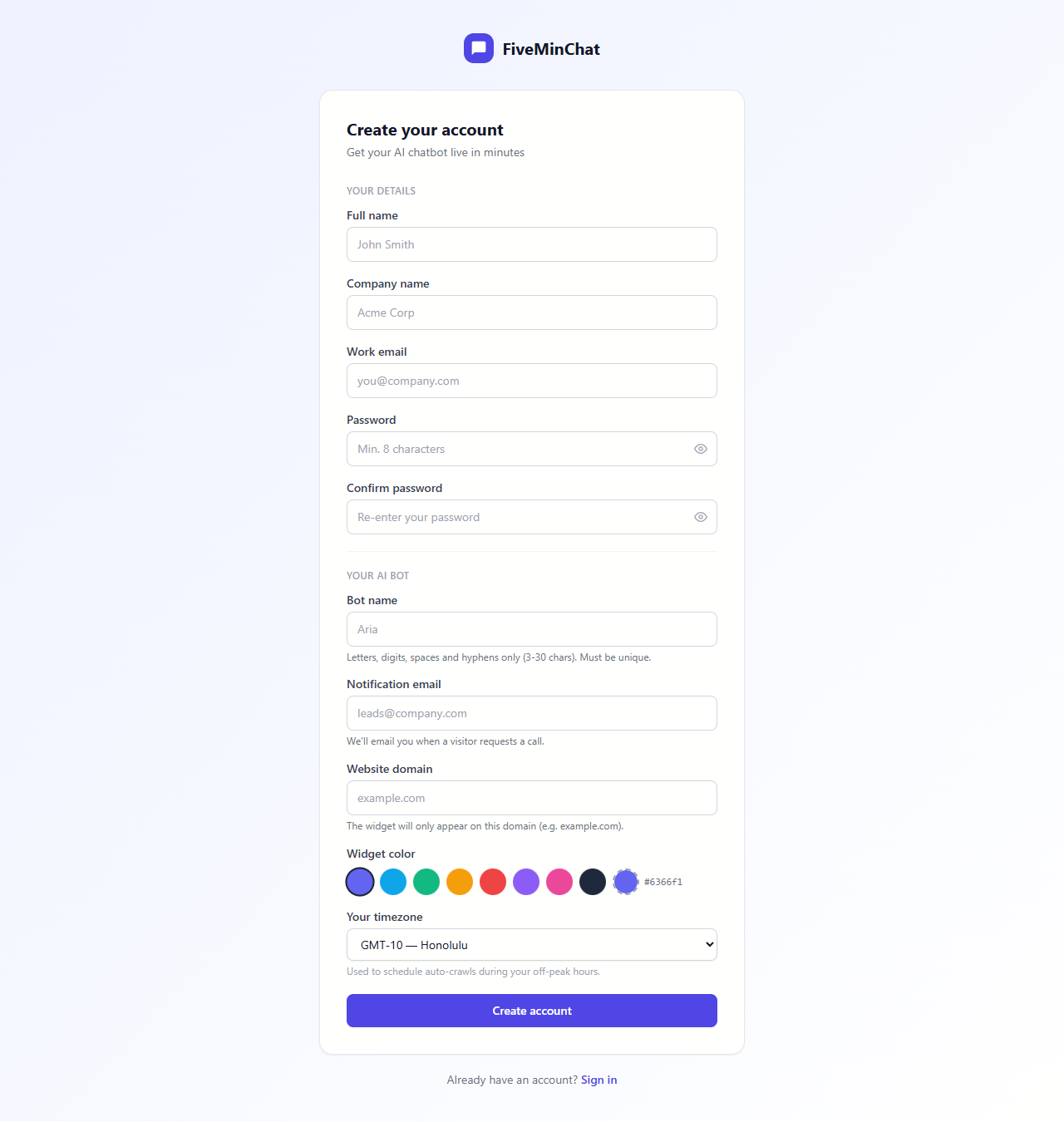
This is where you name and configure your chatbot:
- Bot name - What the chatbot will be called (e.g. Aria, Max, your business name). Keep it friendly.
- Notification email - Where we send alerts when a visitor leaves their contact info. Can be the same as your sign-up email.
- Website domain - Your website address (e.g.
example.com). The widget will only appear on this domain. - Widget colour - Pick a colour that matches your brand.
- Timezone - Used to schedule automated website crawls during your off-peak hours.
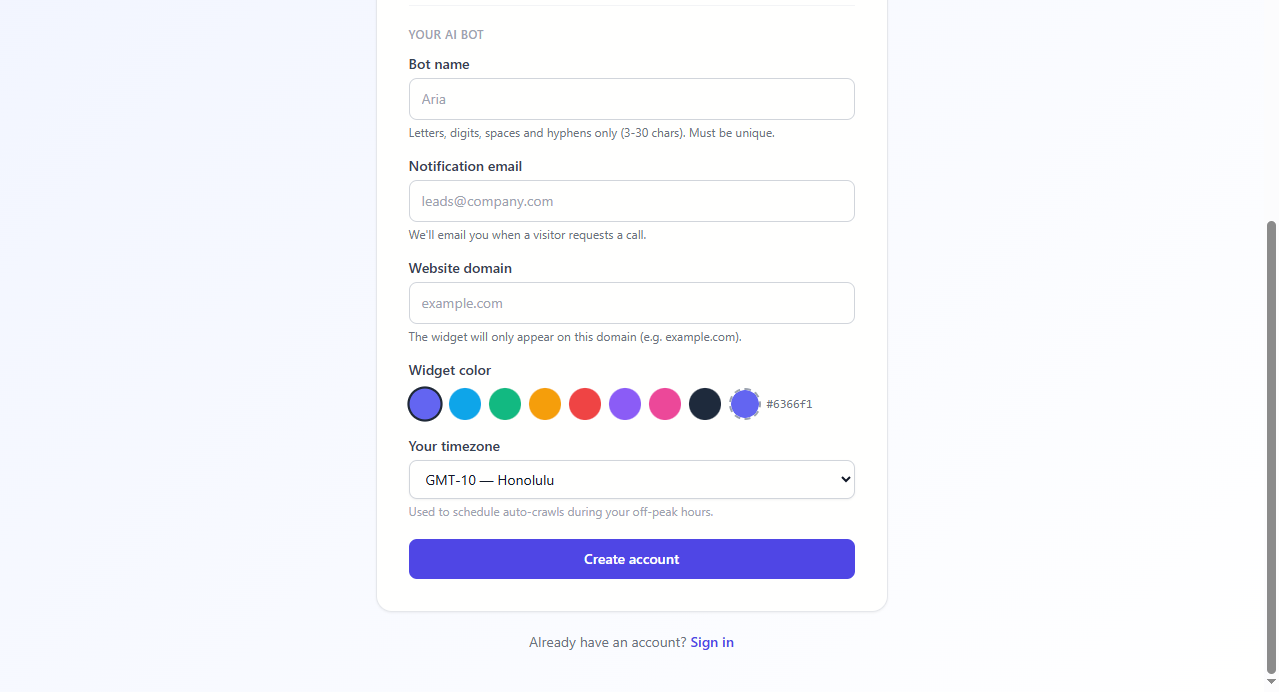
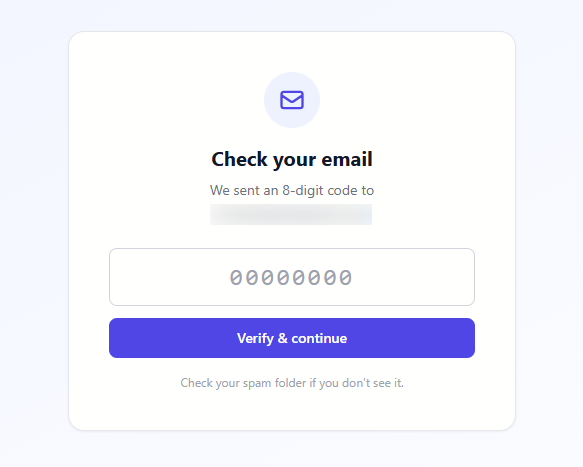
Confirming Your Email
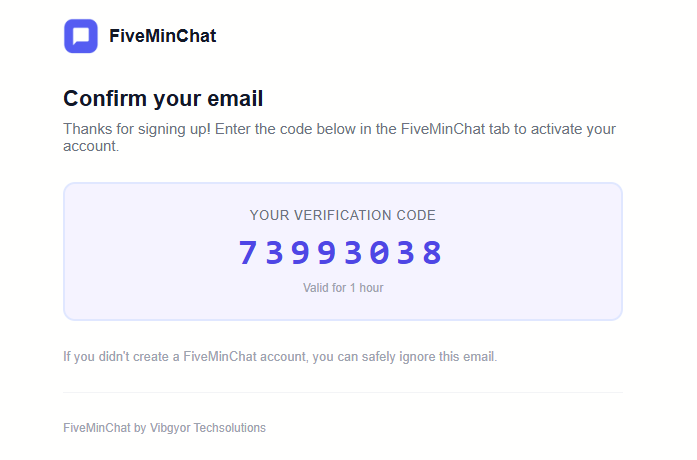
After clicking "Create account", FiveMinChat sends an 8-digit verification code to your email. You enter this code directly in the app - no link to click, no page redirect.
Dashboard Overview
Your dashboard is where you manage everything - training your bot, checking usage, getting your embed code, and adjusting settings.
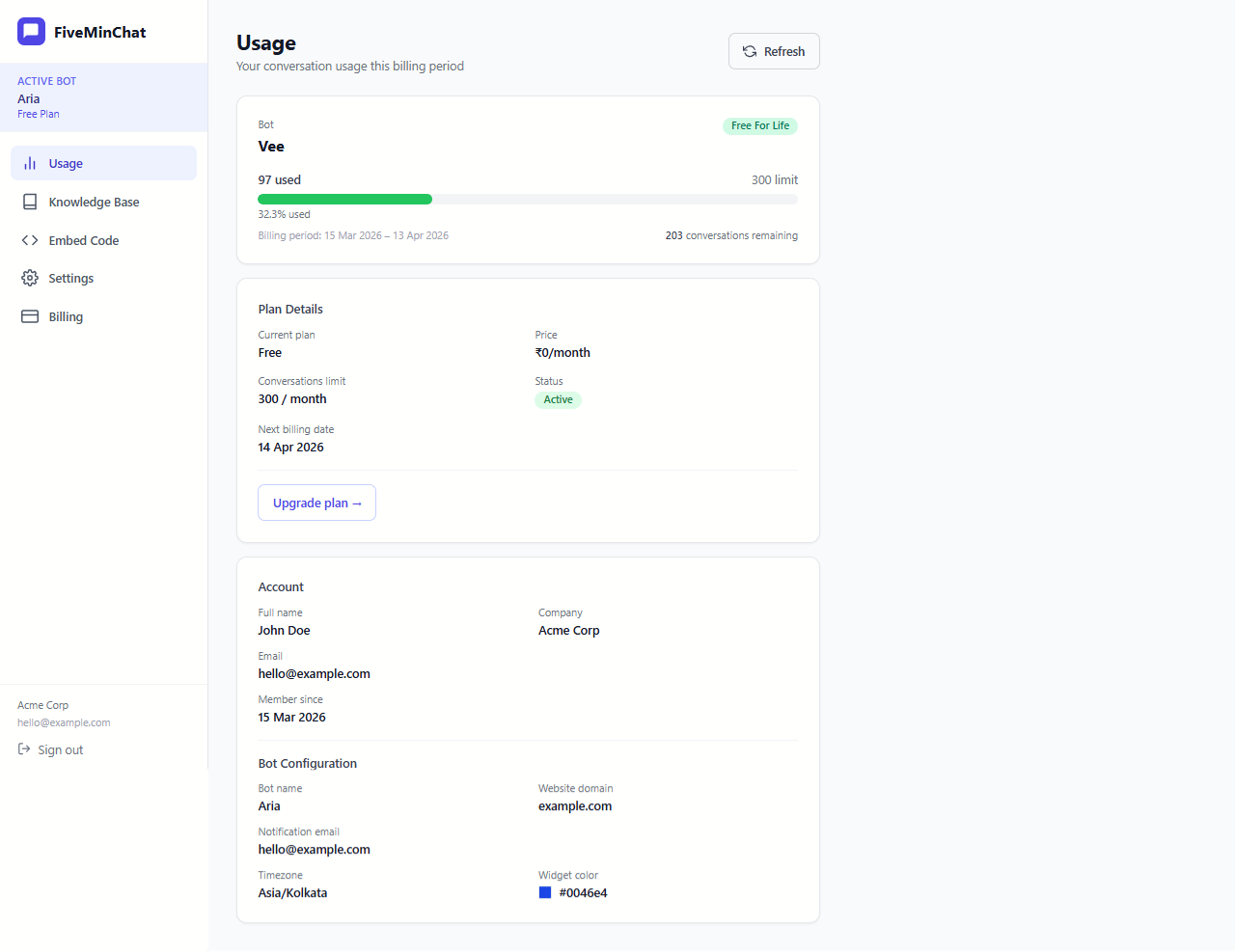
Sidebar Navigation
On the left side you'll see the navigation menu:
See how many messages your bot has handled this month vs your plan limit.
Train your bot - crawl your website or upload documents here.
Change your bot's name, colour, greeting message, and system prompt.
View your current plan and upgrade when you're ready.
Get the one-line code snippet to add the chatbot to your website.
Knowledge Base
This is the brain of your chatbot. Whatever you add here is what the bot uses to answer questions. You have two ways to train it: crawl your website automatically, or upload documents manually.
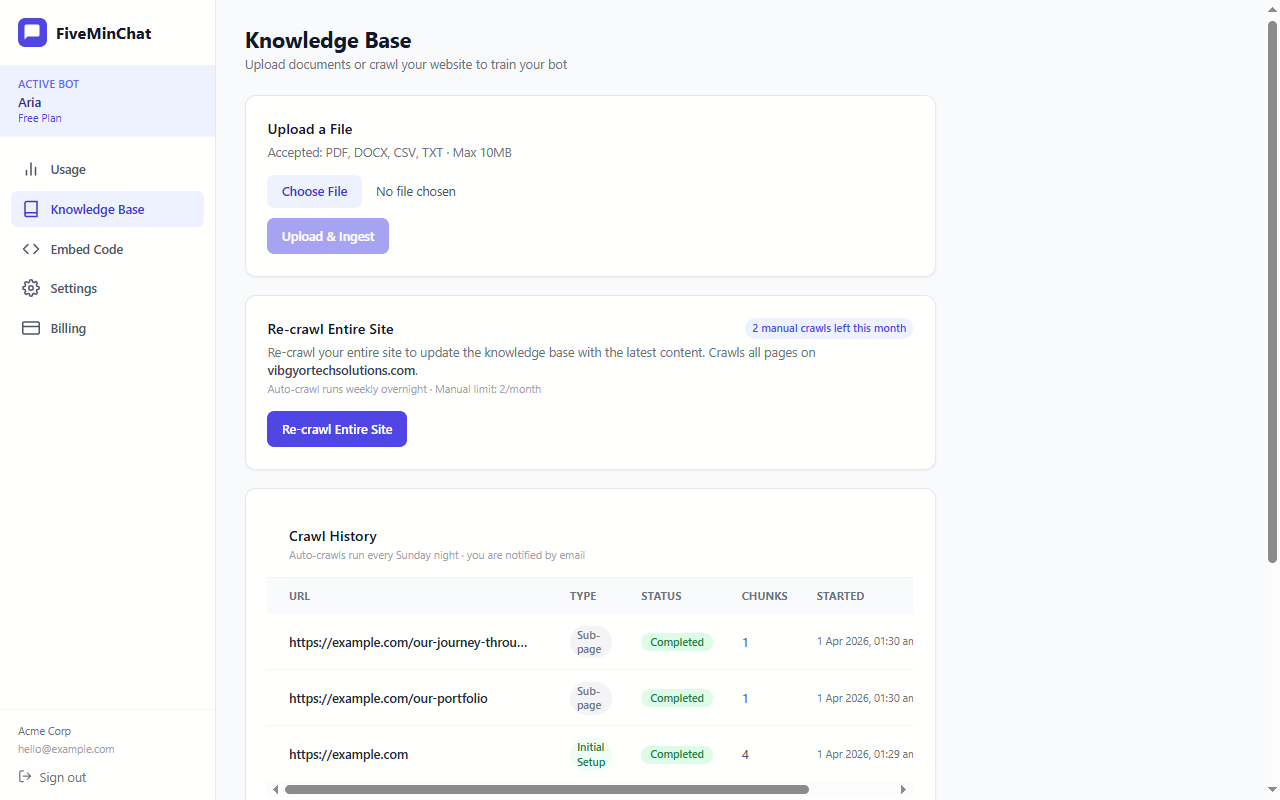
What you'll see on this page
- Crawl Website tab - Enter your website URL and the bot will automatically read all your pages.
- Upload Files tab - Upload PDF or Word documents directly.
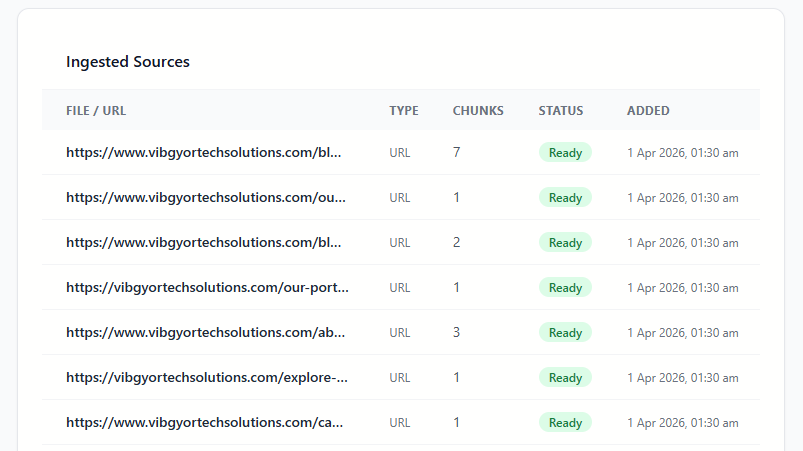
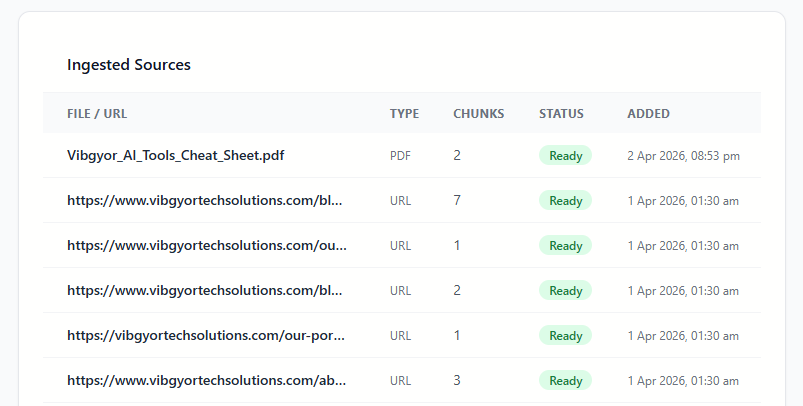
- Ingested Sources list - Shows every page or file your bot has already learned from, including the status and number of text chunks processed.
Bot Settings
Customise how your chatbot looks and behaves from the Settings page.
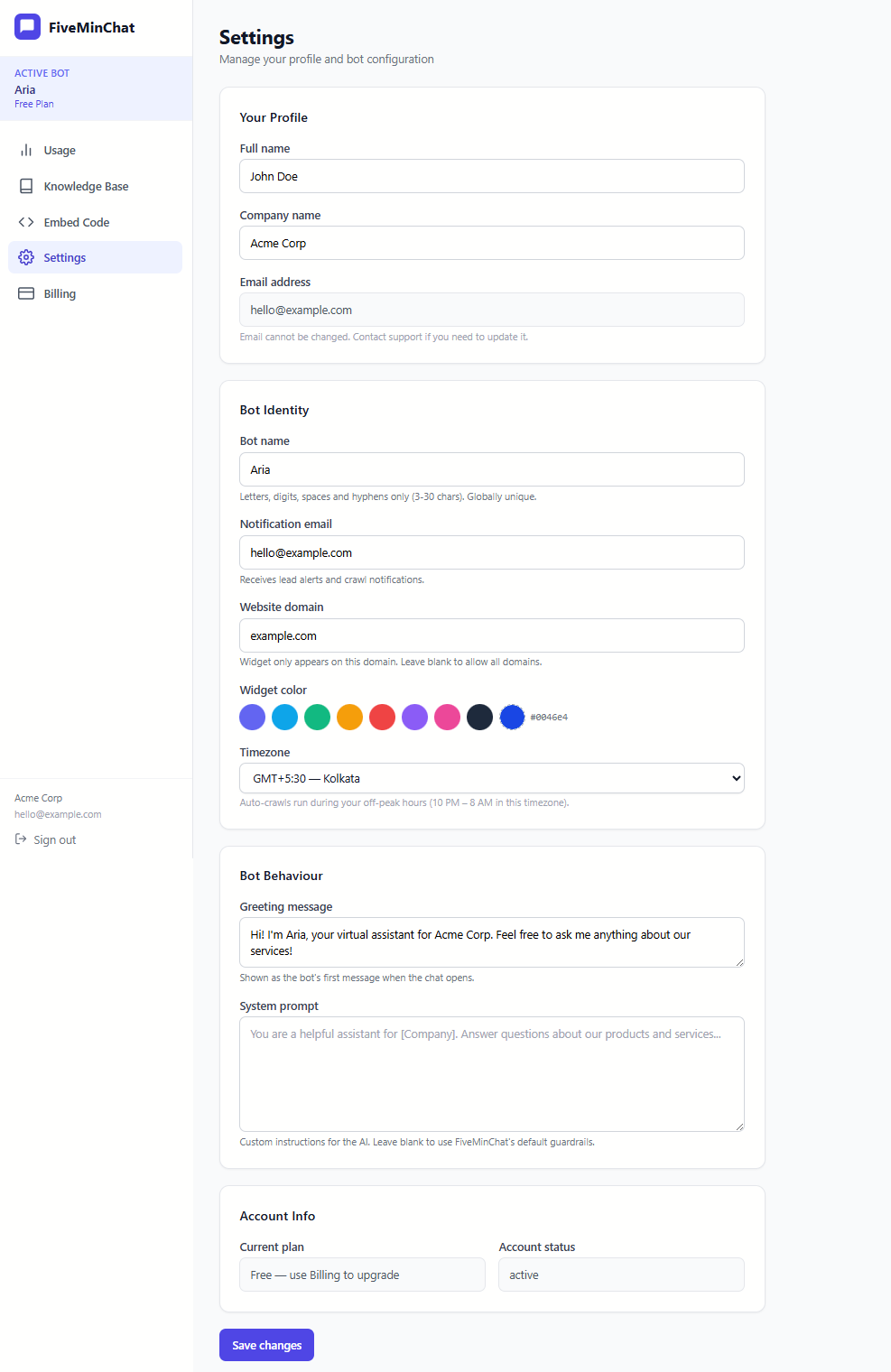
What you can change
| Setting | What it does |
|---|---|
| Bot name | The name shown in the chat window header (e.g. "Aria") |
| Widget colour | The colour of the chat button and header - match your brand |
| Greeting message | The first message visitors see when they open the chat (e.g. "Hi! How can I help you today?") |
| Notification email | Where lead alerts get sent when a visitor shares their contact info |
| Website domain | The bot only appears on this domain - keeps it off other sites |
| Greet visitors with suggested questions | Shows a small bubble a few seconds after a visitor arrives, introducing your bot with two of its suggested questions. On by default; shown once per visit |
| WhatsApp number | Adds a “Continue on WhatsApp” button to your chat so visitors can reach you on WhatsApp in one tap (every plan). Pick your country and enter your number; use Test on WhatsApp to check it. On Growth and Pro, the visitor’s question is filled in for you. More about WhatsApp hand-off |
| Timezone | Used to schedule automatic website re-crawls at night when traffic is low |
| System prompt | Give the bot permanent background knowledge and instructions - critical for facts your website may not state clearly (address, phone, hours, policies) |
System Prompt - Your Bot's Permanent Knowledge
Web crawlers read page text - but many websites embed their address, phone number, and opening hours inside images, maps, or JavaScript widgets that crawlers cannot read. Even if the information is in plain text, it may be buried in a footer that gets skipped. The result: a visitor asks "Where are you located?" and the bot says it doesn't know - even though the answer is on your homepage.
The fix is simple: paste that information directly into the System Prompt. Whatever you write there is always available to the bot, regardless of what was or wasn't crawled from your site.
What to put in the System Prompt
Think of the System Prompt as a private briefing note that the bot reads before every conversation. Anything you write here is always taken into account. Include facts that are important but may not be reliably crawled from your website:
- Business address - full street address including city, state, and PIN/ZIP
- Phone number(s) - include the country code and specify which is sales vs. support
- Email address(es) - e.g. sales@yourcompany.com, support@yourcompany.com
- Opening hours - including holidays, lunch breaks, and different hours per day
- WhatsApp number - so the bot can mention it in answers (for a one-tap button, also add it under WhatsApp number in Settings)
- Response time promise - e.g. "we reply to all emails within 4 hours on business days"
- Key policies - return/refund policy, shipping timeframes, warranty terms
- Things the bot must never say - e.g. never quote prices, never discuss competitors
- Tone and language - e.g. "always reply in formal English" or "always reply in Hindi" (without an instruction, the bot replies in whatever language the visitor writes in)
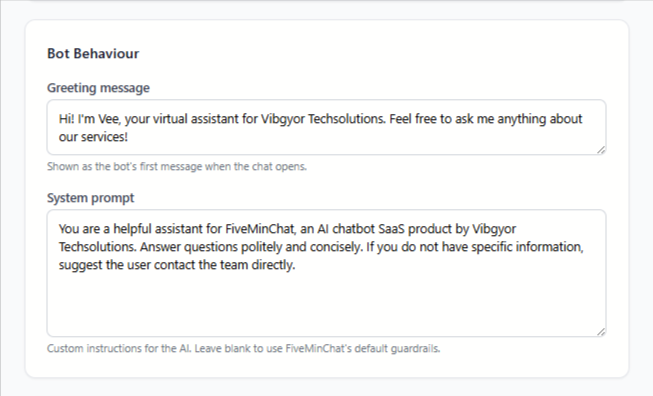
Example system prompt
Here is a sample you can adapt for your business:
WhatsApp Hand-off
Some visitors would rather talk to you on WhatsApp than in a website chat. Add your WhatsApp number and your chat shows a Continue on WhatsApp button, so they can reach you in one tap - on every plan, including Free.
Turn it on
What your visitors see
A green Continue on WhatsApp link sits just above the chat input. Tapping it opens WhatsApp - the app on a phone, WhatsApp Web on a computer - with a message to you already typed:
| Plan | Pre-filled message |
|---|---|
| Growth, Pro | “Hi! I was chatting with the assistant on yoursite.com and have a question: [the visitor’s latest question]” - so you know what they need before you reply |
| Free, Starter | “Hi! I found you on yoursite.com and have a question.” |
The visitor can edit the message before sending. If your bot has used up its monthly messages, the button still appears next to the contact form, giving visitors a second way to reach you.
Good to know
- No WhatsApp Business API needed - it uses a standard WhatsApp click-to-chat link, so there is no extra cost or approval. Both WhatsApp and WhatsApp Business numbers work, including landline numbers registered on WhatsApp Business.
- The conversation moves to your phone - messages sent on WhatsApp go to your WhatsApp, not into your FiveMinChat Messages page.
- See how often it is used - your Usage page shows how many visitors continued on WhatsApp.
- To remove the button, clear the number in Settings and save.
Usage & Limits
The Usage page shows you how many messages your bot has handled this billing cycle, and how close you are to your plan's limit.
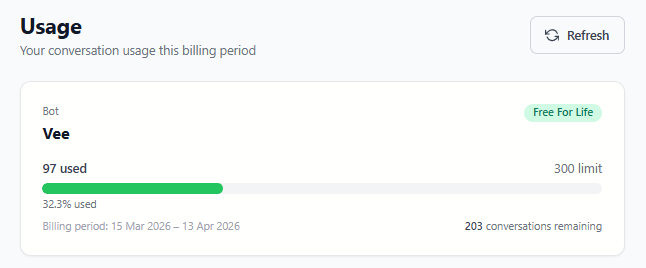
What counts as a "message"?
Each message a visitor sends to your bot counts as one message. If a visitor sends 5 messages in one chat session, that counts as 5 messages.
Visitor funnel
The Visitor funnel card shows, for the last 30 days, how many visitors saw your chat widget, how many opened it, and how many asked a question, with the percentage that made it from each step to the next. If you have added a WhatsApp number, it also shows how many continued on WhatsApp. Each visitor is counted once per visit, however many questions they ask - so a low “opened” figure means visitors are not noticing the chat, while a low “asked” figure means they open it but do not find a reason to type.
What happens when the limit is reached?
The chat widget is never hidden from your website. When you reach your monthly limit, your bot keeps answering on a 10% grace buffer. Once that is used up too, visitors who open the chat see a short contact form instead of an AI answer, asking for their name, email or phone and question. Each enquiry is emailed to you and appears on your Messages page, so no lead is lost. Normal answers resume when your limit resets at the start of your next billing cycle, or straight away if you upgrade your plan.
Embed Code
The Embed Code page gives you the one-line snippet of code that adds your chatbot to your website.
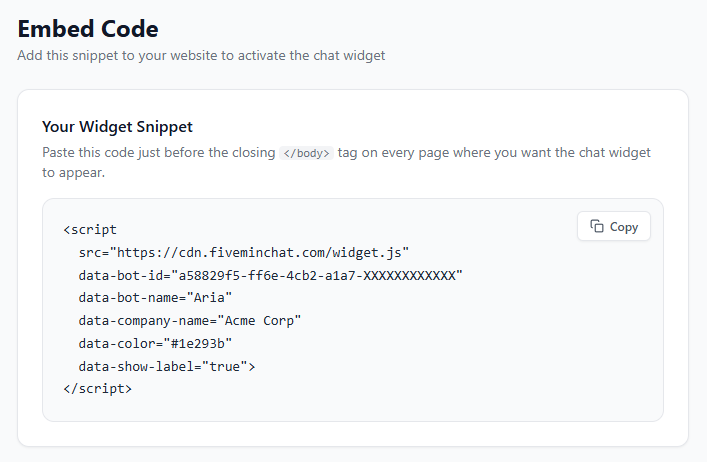
Your embed snippet looks like this:
Copy this code by clicking the Copy button. Then paste it into your website - instructions for WordPress and other platforms are in the sections below.
</body> tag on every page where you want the chat widget to appear - usually that means site-wide in your theme's footer.Crawling Your Website
This is the easiest way to train your bot. FiveMinChat visits every page on your website and reads the content - just like a real person would.
example.com). Click the Ingest My Entire Website button - FiveMinChat will automatically crawl all pages on your site.
Crawl History
Below the upload section you'll find a Crawl History panel. This shows a log of every time your website has been crawled, including automatic scheduled crawls. The auto-crawl frequency depends on your plan: Starter runs once a month, Growth runs twice a month, and Pro runs once a week. All auto-crawls happen overnight during low-traffic hours based on your configured timezone.
Uploading Documents
Have important information in a PDF brochure, price list, or Word document? Upload it directly and your bot will learn from it.
Supported file types
| Format | Extension | Notes |
|---|---|---|
.pdf | Most common - works great for brochures, menus, manuals | |
| Word Document | .docx | Microsoft Word files |
| Excel Spreadsheet | .xlsx | Product lists, price tables, data exports |
| CSV | .csv | Comma-separated data files - good for large datasets or product catalogues |
| Plain Text | .txt | Simple text files, FAQs, notes |
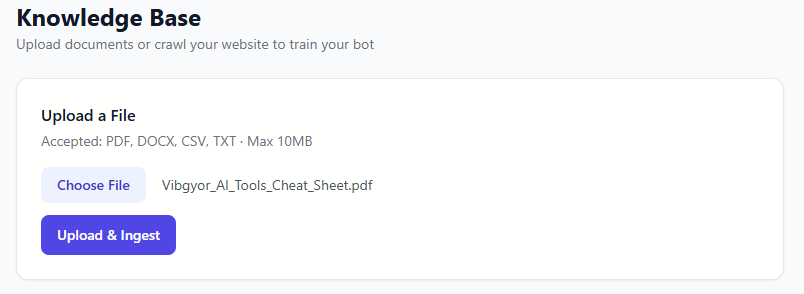
Checking Ingest Status
The Ingested Sources list at the bottom of the Knowledge Base page shows you everything your bot has learned from.
Understanding the status badges
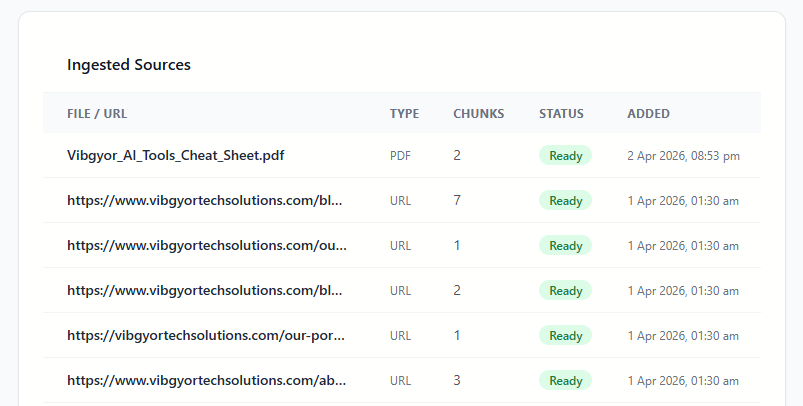
| Status | What it means | Action needed? |
|---|---|---|
| Processing | Your bot is currently reading and learning from this content | Wait 30–60 seconds and refresh |
| Ready | Your bot has fully learned from this page or file | None - all good ✅ |
| Failed | The page couldn't be read (usually login-protected pages or server errors) | No action needed for password-protected pages; contact support for others |
What are "chunks"?
The Chunks column shows how many text segments were extracted from each source. A chunk is roughly 300 words (around 2,000 characters) of text. More chunks = more content your bot can reference. A page with 0 chunks typically means it had very little readable text (e.g. mostly images).
WordPress Plugin
If your website runs on WordPress, installing FiveMinChat is easiest using our plugin - no code editing required.
Step 1 - Install the plugin from WordPress.org
yourwebsite.com/wp-admin and log in with your WordPress credentials.
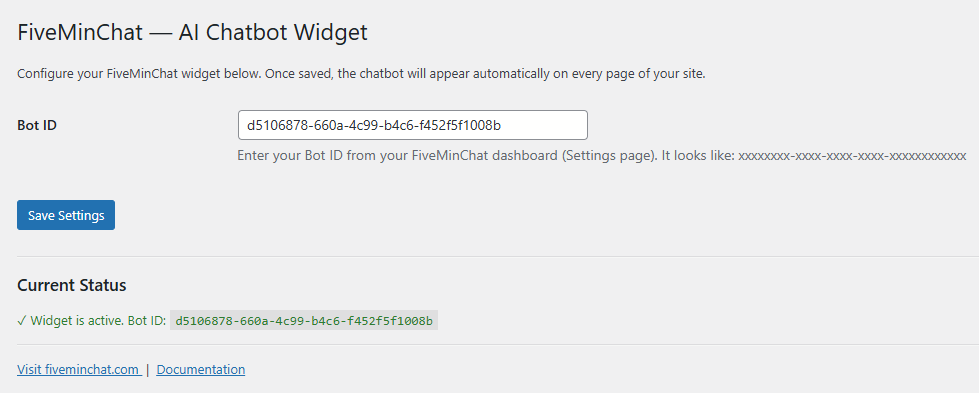
Step 2 - Add your Bot ID
d5106878-660a-4c99-b4c6-f452f5f1008b). Copy it.
Other Websites (Non-WordPress)
FiveMinChat works on any website - Shopify, Wix, Webflow, Squarespace, or a custom-coded site. You just paste one line of code.
Copy your embed code
Go to Embed Code in your dashboard and copy the full script tag. It looks like this:
Where to paste it
Paste this code just before the closing </body> tag on every page. Most website builders have a "Custom Code" or "Footer Scripts" section in their settings. Here's where to find it on popular platforms:
| Platform | Where to add the code |
|---|---|
| Shopify | Online Store → Themes → Edit Code → theme.liquid → before </body> |
| Wix | Settings → Custom Code → Add Code → Body - End |
| Webflow | Project Settings → Custom Code → Footer Code |
| Squarespace | Settings → Advanced → Code Injection → Footer |
| Custom HTML | Paste directly before </body> in every HTML file |
Testing Your Bot
Before sharing your site with visitors, take a minute to test your bot yourself.
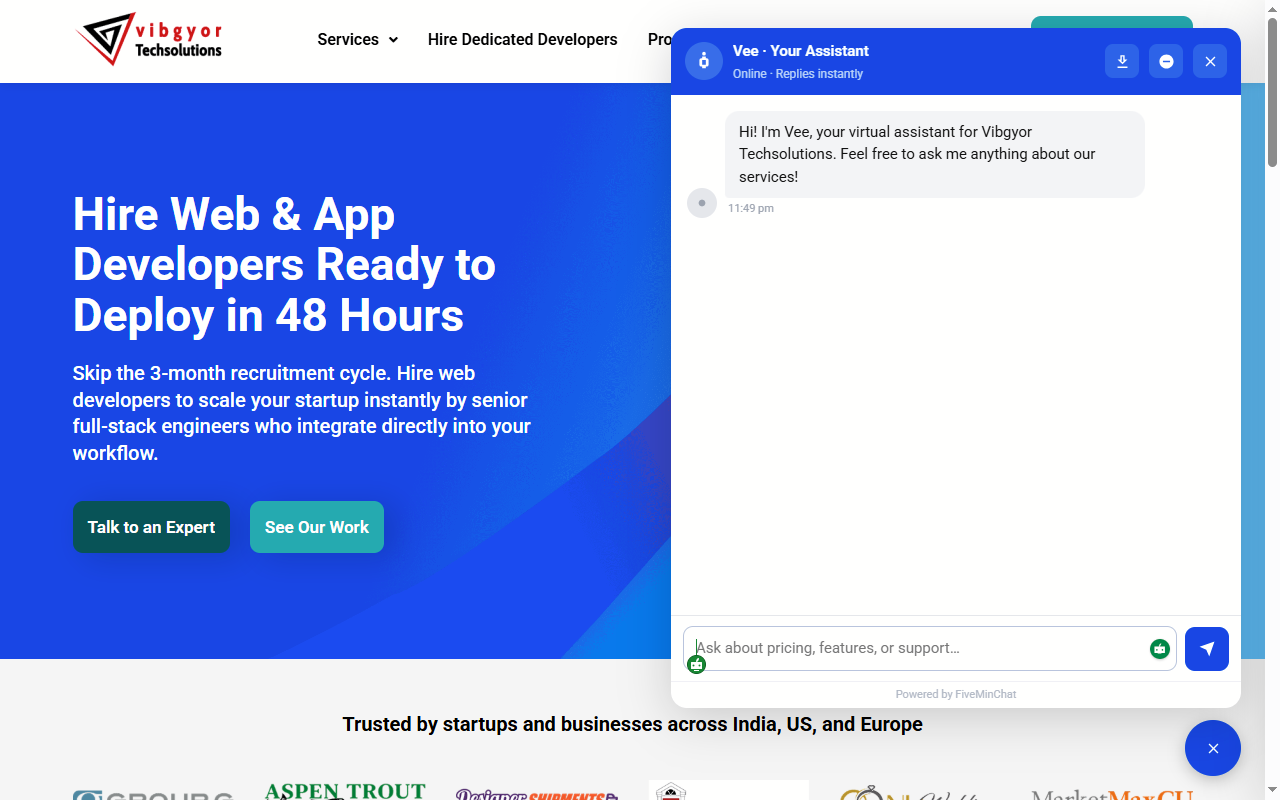
- The embed code / plugin is properly installed
- The domain in your Settings is the site the widget is on (
www.makes no difference, soexample.comandwww.example.comboth work) - Your account is not suspended (check the Usage page) - when a trial ends without a subscription the bot moves to the Free plan and stays visible
Plan Comparison
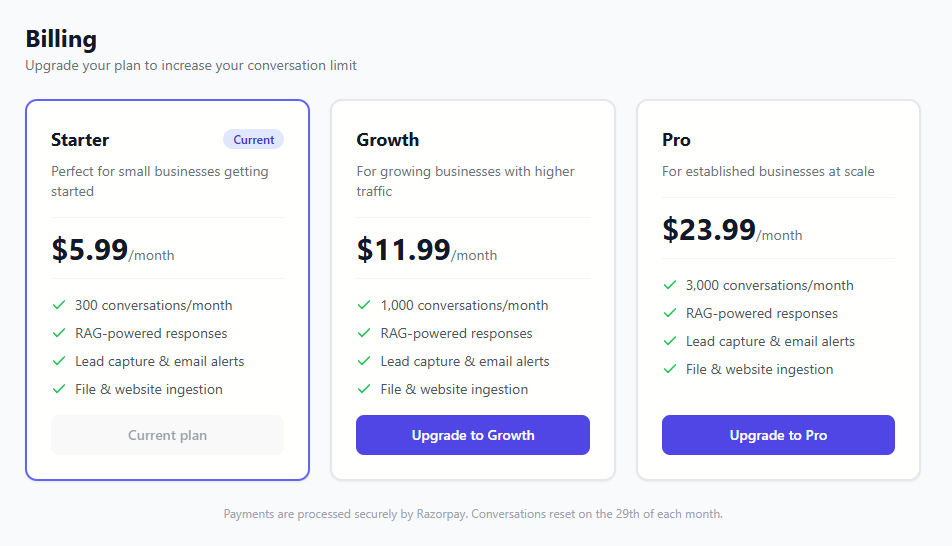
Every plan includes AI chat, lead capture, the customisable widget and the WhatsApp hand-off button. Plans differ in the limits below, plus two extras: on Growth and Pro the WhatsApp message includes the visitor’s question, and on Pro you can remove the FiveMinChat badge.
| Free | Starter | Growth | Pro | |
|---|---|---|---|---|
| Price (INR) | Free forever | ₹499/month | ₹999/month | ₹1,999/month |
| Price (USD) | $0 | $5.99/month | $11.99/month | $23.99/month |
| Messages/month | 100 | 1,000 | 5,000 | 15,000 |
| Pages per crawl | 15 | 100 | 500 | 2,000 |
| Crawl depth | 1 level | 2 levels | 3 levels | 5 levels |
| File uploads | 1 | 5 | 20 | Unlimited |
| File size | 5 MB | 5 MB | 10 MB | 25 MB |
| Manual recrawls/month | 1 | 2 | 5 | 10 |
| Auto-crawl | None | Monthly | Twice a month | Weekly |
| Message history | 7 days | 30 days | 90 days | 1 year |
| WhatsApp hand-off | Button | Button | Button, with the visitor’s question | Button, with the visitor’s question |
| Remove FiveMinChat badge | - | - | - | Yes |
INR prices include applicable GST and are paid via Razorpay (UPI, cards, net banking).
Understanding the limits
- Messages/month - Every message a visitor sends counts as one message. The counter resets on your billing date each month. You also get a 10% grace buffer - see Usage & Limits.
- Pages per crawl - Maximum number of pages read from your website in a single crawl.
- Crawl depth - How many clicks away from your starting page the crawler follows links. 1 level means the starting page and the pages it links to directly.
- File uploads / File size - How many documents (PDF, Word, Excel, text) you can upload, and the largest size allowed for each.
- Manual recrawls/month - How many times you can re-crawl your website yourself from the Knowledge Base page. Resets on your billing date each month.
- Auto-crawl - How often FiveMinChat re-crawls your site in the background without any action from you. The Free plan has no auto-crawl - use your manual recrawl after updating your site.
- Message history - How long conversations stay in your dashboard. Older messages are securely backed up before removal, and you get an email 7 days before they are removed.
How to upgrade
Frequently Asked Questions
Can the bot remember what a visitor said earlier in the conversation?
Yes - the bot maintains full context throughout a conversation. It remembers everything said in the current session (up to the last 10 messages), so visitors can refer back naturally - e.g. “tell me more about that last option” or “what was the price you mentioned?” Each time a visitor opens a new browser session, the conversation starts fresh.
Can I have more than one bot?
Each account comes with one bot. If you need multiple bots (e.g. for different websites), contact us at hello@fiveminchat.com.
Will the chatbot slow down my website?
No. The widget loads asynchronously - meaning your website loads first, and the chatbot loads in the background. It has no measurable impact on page speed.
What languages does it support?
FiveMinChat replies in the language your visitor writes in - English, Hindi, Hinglish (Hindi typed in English letters), Bengali, Tamil and most other languages. Your website and documents can stay in English: the bot still answers a Hindi question in Hindi, and switches language if the visitor does. This works automatically on every plan. If you want every reply in one fixed language regardless of what the visitor types, add that instruction to your System Prompt in Settings (e.g. "always reply in formal Hindi").
How often does the bot re-learn from my website automatically?
Auto-crawl frequency depends on your plan. Starter crawls once a month, Growth crawls twice a month, and Pro crawls once a week. All automatic crawls run overnight in your configured timezone so they don't interfere with normal traffic. You can always trigger a manual re-crawl at any time from the Knowledge Base page, subject to your monthly manual crawl allowance.
How many times can I manually re-crawl my website each month?
The number of manual crawls you can trigger each month depends on your plan: Starter gets 2, Growth gets 5, and Pro gets 10. This counter resets every 30 days. Automatic background crawls do not count against this limit.
How long is message history kept?
Message history is retained based on your plan: Free keeps the last 7 days, Starter and the 7-day trial keep 30 days, Growth keeps 90 days, and Pro keeps a full year. Before any messages are removed, they are securely backed up on our servers. This retention window only applies to the in-dashboard view - your visitors are not affected in any way.
What is the maximum file size I can upload?
The file size limit depends on your plan. Starter allows files up to 5 MB, Growth up to 10 MB, and Pro up to 25 MB. If you have a large document that exceeds your limit, try splitting it into smaller files or extracting the most relevant sections before uploading.
What happens to my data?
Your website content and uploaded documents are stored securely and used only to power your chatbot. We don't share your data with other customers or third parties. See our Privacy Policy for full details.
My bot is giving wrong answers - what should I do?
The bot can only answer from the content it has been trained on. If it gives wrong answers, try:
- Re-crawling your website to pick up any recent changes
- Uploading a specific FAQ document with the correct answers
- Adding instructions to the System Prompt in Settings (e.g. "Always recommend calling us for pricing questions")
Still need help?
Email us at hello@fiveminchat.com and we'll get back to you within one business day.